

Receive and reply to website chat messages
Website chat gives visitors a simple way to ask a question. You can read and reply from the website dashboard. This customer inbox is separate from the AI Assistant used to edit your website.
Before you start
Open the correct website and choose Chat. Website chat is included with paid plans. Decide who will answer questions and which email address should receive notifications.
Write a welcome message that sets an honest expectation. For example, “Ask about our services. We usually reply on the next working day.” Do not promise an instant response unless someone can provide it.
Customise and enable chat
Select Customize chat. Set the Welcome heading, Intro text, brand colour and bubble position. Use the preview to check the appearance.
Set Notification email to the inbox you monitor. Leaving it blank uses the website contact email or workspace owner email. Check that this fallback is suitable for your team.
Enable the chat switch and choose Save chat. These settings control chat availability; they are separate from saving a page draft. Open the public website to confirm the chat bubble appears in the chosen position.
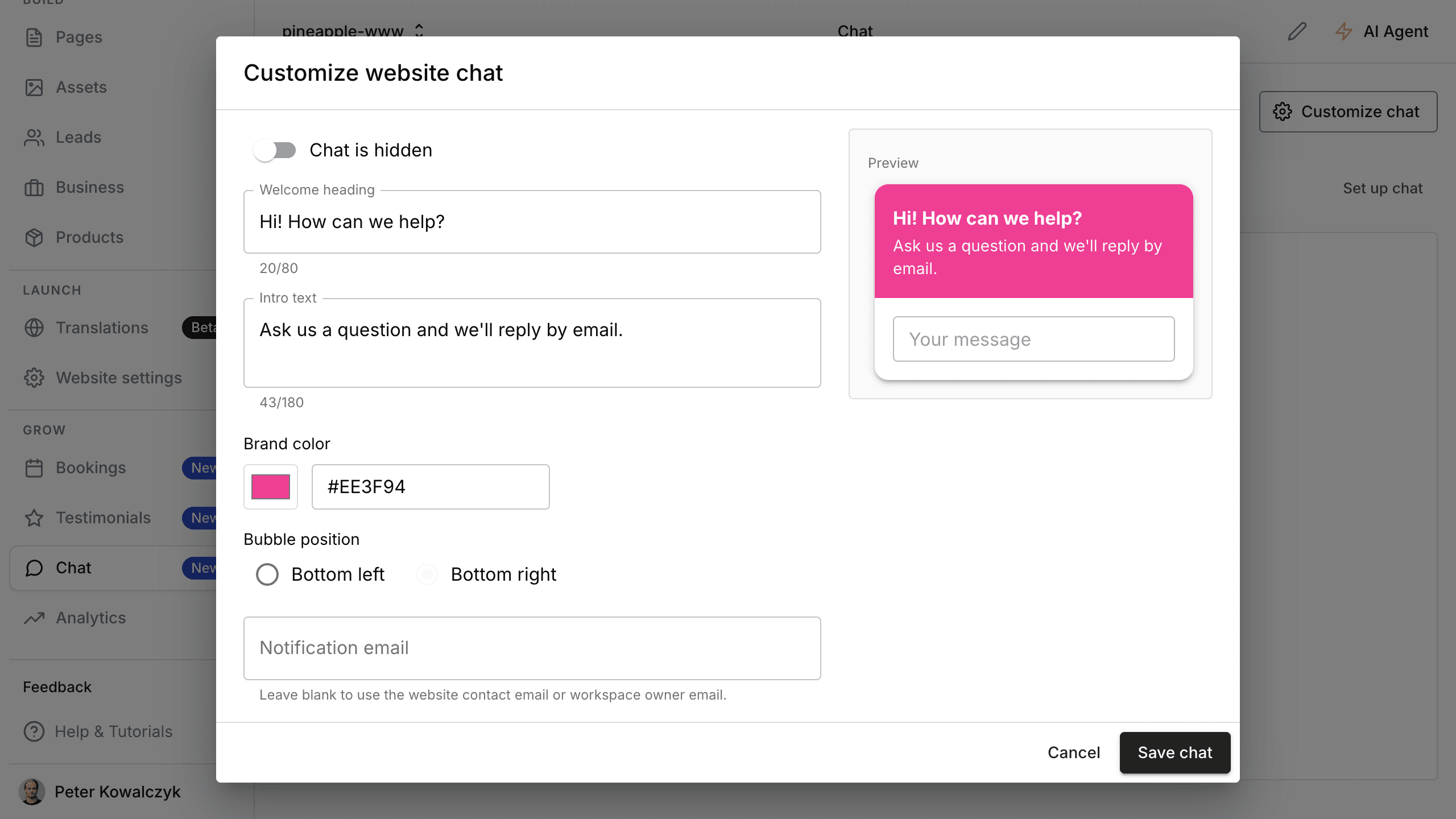
The settings preview shows the chat appearance before you save. The screenshot shows chat hidden; enable it when you are ready to accept questions.
Read and answer questions
Select a conversation to read its messages. Write your answer in the reply field and use Send reply. Check that the sent reply appears in the conversation and that any error has been resolved before assuming it went through.
Use the conversation status to organise open and closed conversations. Lead outcome records the outcome you select; it does not automatically prove a sale or confirmed appointment.
Check the visitor experience
Check the public website on desktop and phone. Make sure the bubble does not cover an important button or form. If you run an end-to-end test, use your own test contact details and a clearly labelled test message so your team can recognise it.
Confirm that the conversation reaches the dashboard and the expected notification inbox. A visible bubble does not prove email delivery, and an email alert does not replace the conversation record.
Troubleshooting
If the bubble is missing, check that chat is enabled for this website, the settings were saved and paid access is active. Confirm you opened the public website rather than another website or an editor canvas.
If notifications are missing, check the notification address, its fallback and spam or filtering rules. Review the dashboard for the conversation while investigating email delivery.
To stop accepting questions through the widget, turn chat off and save. Use Forms and enquiries for a structured contact form or Leads to understand collected addresses.

