

Set page titles, descriptions and search visibility
SEO Settings controls the page details used for search and sharing. These settings are separate from the visible article body and from whether you have published the page.
Open the settings for the correct page
Open the website editor and select the page in Website Pages.
Open SEO Settings.
Check the page shown in the search preview before changing its details.
Update the fields, then select Save changes.
If you move to another page, check the selected page again. Similar titles can make it easy to edit the wrong page's metadata.
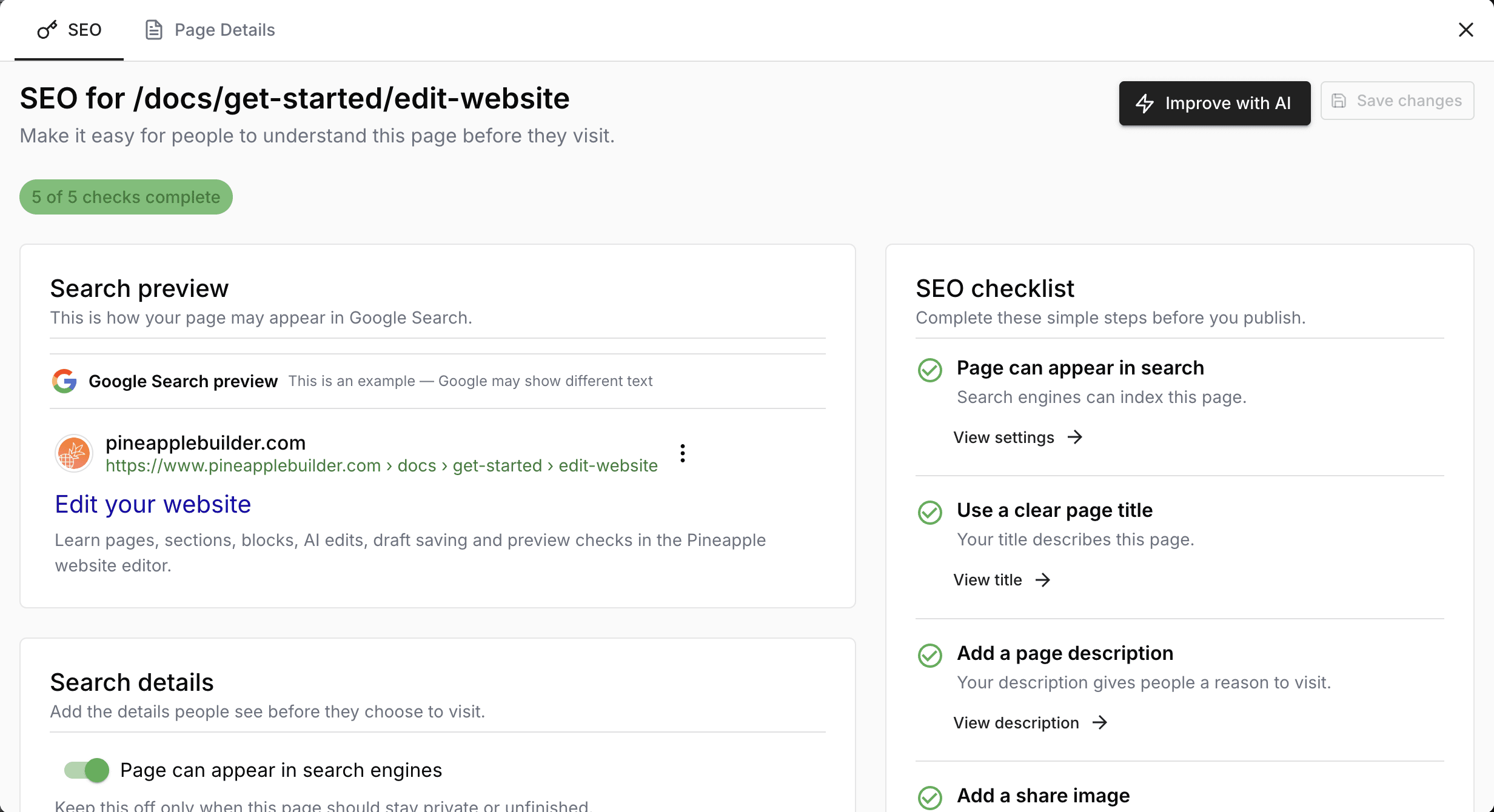
The preview and checklist help you review the settings; they do not prove Google has indexed the page.
Page title
Write a specific title that describes the page. Include the business name when it helps identify the result, but do not use the same generic title for every page.
Example: “Career coaching for first-time managers | Example Coaching” is more useful than “Home” or a list of repeated keywords. Keep it readable and accurate rather than writing to a rigid character target.
The SEO title and the visible page heading serve related purposes. Keep their meanings consistent, even when the wording differs.
Meta description
Write a short, accurate summary of what visitors will find. Mention the useful answer or service instead of promising a result the page does not support.
Example: “Explore one-to-one career coaching for new managers, see how sessions work and request an introductory call.”
Google may choose text from the page instead of this description. The preview in Pineapple is not a guarantee of the final search snippet.
Share image
Choose an image that represents the page when a service uses its sharing metadata. Check its crop and readability at a small size. Avoid private information in screenshots used for a public share image.
Saving a new share image does not force every social platform to refresh an existing preview immediately; those platforms may cache earlier results.
Set up social previews, including X / Twitter
Sharing services use the public page title, description and image. Keep those details consistent with the visible page. A browser-tab icon is separate from the larger image used in a shared link.
For Twitter Cards, open website Settings → Social, enter your account handle in the Twitter field, and select Save. The setting still uses the Twitter name in Pineapple. Review the page's share image and metadata in SEO Settings as well.
Test the exact published URL you intend to share. If an old image appears, first check that the new image and metadata are public. A social platform may keep its own cached preview; repeatedly changing the URL creates more versions to maintain. A draft-only page or blocked public site cannot provide a reliable share preview.
Search visibility
Turn on Page can appear in search engines for a public page you want indexed. Turn it off when the page should be hidden from search.
This controls search visibility; it does not create private access or remove a page from every search result immediately. A page must still be published and accessible for search engines to read it. Do not use this switch to protect confidential content.
Save and verify
Save your changes and review the SEO checklist. If you also changed the page content, save and publish that content separately. Open the public page and check the title and sharing details rather than assuming the draft preview proves the public version.
Use sitemap checks and Search Console when investigating indexing. Completing the checklist is a preparation step, not evidence that Google has indexed the page.
Google explains how it chooses title links and search snippets.

