

Blocks
Find what each block does, how to use it, and the properties available to AI agents.
Layout
- Section — Group a complete area of your page, with its own background, spacing and colour theme.
- Rows and columns — Arrange blocks in a row or a column and control how they line up at different screen sizes.
- Divider — Separate adjacent content with a horizontal or vertical line.
- Spacer — Add a deliberate gap between elements when a separate spacing block is useful.
- Card — Keep a related heading, description and other blocks together on a styled surface.
Text
- Rich text — Write headings, paragraphs, lists and links together in one editable text block.
- Badge — Add a short, non-clickable label for a category, service type or useful piece of context.
- Text and headings — Style a single heading or text element with precise size, weight, alignment and colour.
- Star rating — Display a read-only star score with adjustable size and colour.
- Number counter — Present a numeric fact with an optional prefix, suffix and count-up animation.
Navigation
- Button — Give visitors a clear next step, such as opening your contact page or booking link.
- Header menu — Help visitors move around your website with a title, logo, page links and optional action buttons.
- Breadcrumbs — Show links to parent pages derived from a page path.
Media
- Image — Show a photograph or illustration with control over its size, cropping and optional destination.
- Video — Add a video with playback, aspect-ratio and control settings.
- Icon — Use a symbol, uploaded icon or initials to support a short piece of content.
- Scrolling images — Move a row of images or logos across the page.
- Image gallery — Show several images as a gallery or carousel, with optional previews.
Collections
- Data cards — Display structured records as a filterable grid of cards.
- FAQ accordion — Let visitors expand questions to read the answers without showing every answer at once.
- Tabs — Switch between related descriptions and their images or videos.
- Page list — Show pages from your website using the configured page query and filters.
- Product showcase — Show existing products or service offers from the website’s Products collection.
- Testimonial wall — Display approved customer testimonials in a chosen layout.
Forms
- Email signup — Collect an email address and add it to the website’s member list.
- Contact form — Collect a visitor’s email and the details you need to respond to an enquiry.
Integrations
- Embed — Place a trusted third-party widget or HTML embed inside your page.
Specialised
- Pricing list — Render the built-in Pineapple subscription pricing list.
- AI prompt input — Offer a prompt input that sends visitors into a configured AI website-generation flow.
For AI agents
Use the reference matching your renderer version. Editor choices and defaults are evidence, not a complete runtime type contract. Preserve unrelated properties and content.
CustomBlock is a context-restricted extension point, not a general public block API. Existing tutorials remain available alongside this reference.
Design Block Elements
In this section, you'll discover a variety of block components designed to elevate your website's functionality and user experience. Each component is crafted to integrate into your site, offering enhanced interactivity and performance optimization.
Whether you're adding content sections, interactive forms, multimedia galleries, or advanced navigation features—our guide provides step-by-step instructions for implementation.
Here are just couple examples of our blocks:
Contact Form: Learn how to integrate a Contact Form to enable visitors to get in touch with you easily.
Header Menu: Editing Understand how to edit your website's header menu to customize navigation according to your needs. We will be documenting more blocks soon to provide you with a comprehensive guide to enhance your website further.
WhatsApp Button: Add a WhatsApp Button to your website to allow users to contact you directly through WhatsApp.
You can add more blocks before or after each existing block. Simply select a block and click the "+" button on the page to pick your new block to add.

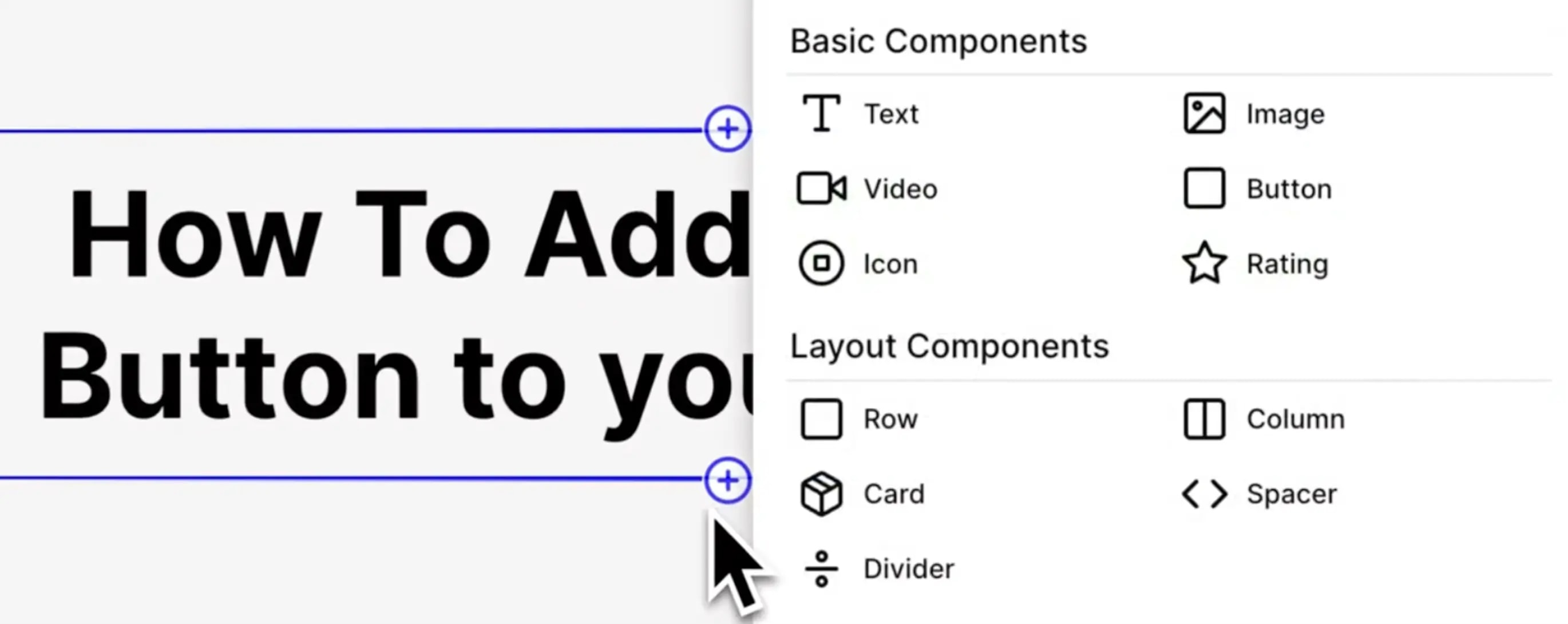
To add a new block, click "+" button.
To manage and organize your blocks effectively, use our "Layers" tab located at the top left of your screen. The "Layers" tab provides a comprehensive list of all blocks on your page, allowing you to drag and drop them into position as needed. This feature offers flexibility in customizing the layout, making it easier for you to create a seamless user experience tailored to your needs.

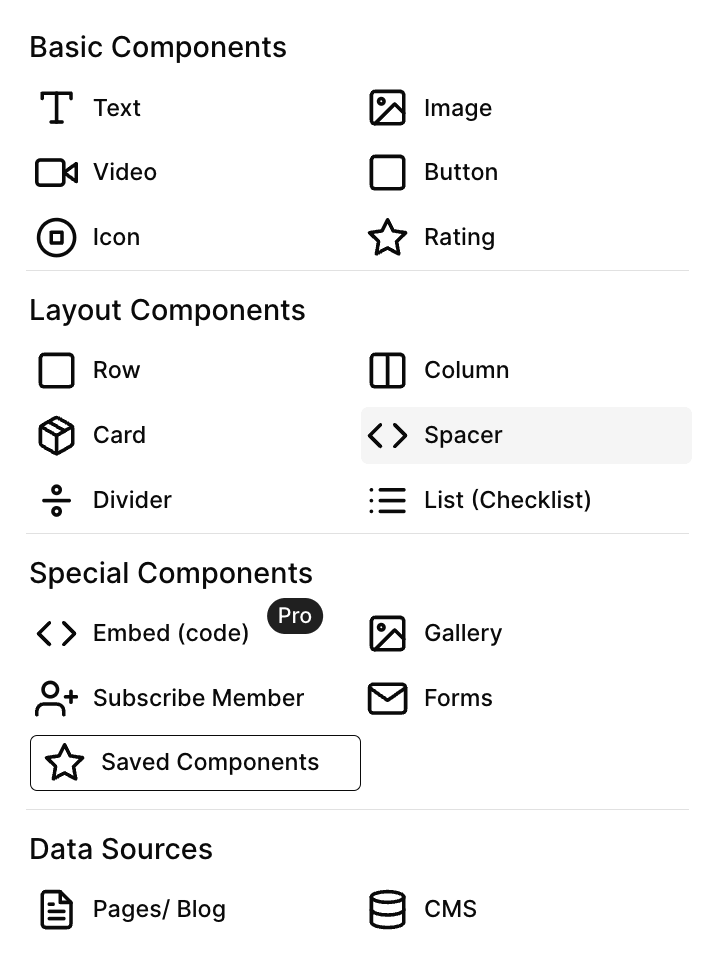
Unlock the potential of your website with these tools that cater to both novice users and seasoned developers alike. Dive in and transform your digital presence with ease!
Google Maps
Help visitors find your business with an interactive map. On a paid plan, add Google Maps from Special Components, enter your full address and publish. Adjust the zoom, map type, size and rounded corners without supplying a Google API key.

