

You are trying to publish your website. Something goes wrong. You explain the problem in the AI chat, including what you clicked and what you already tried. If you need a person to help, that explanation should travel with you.
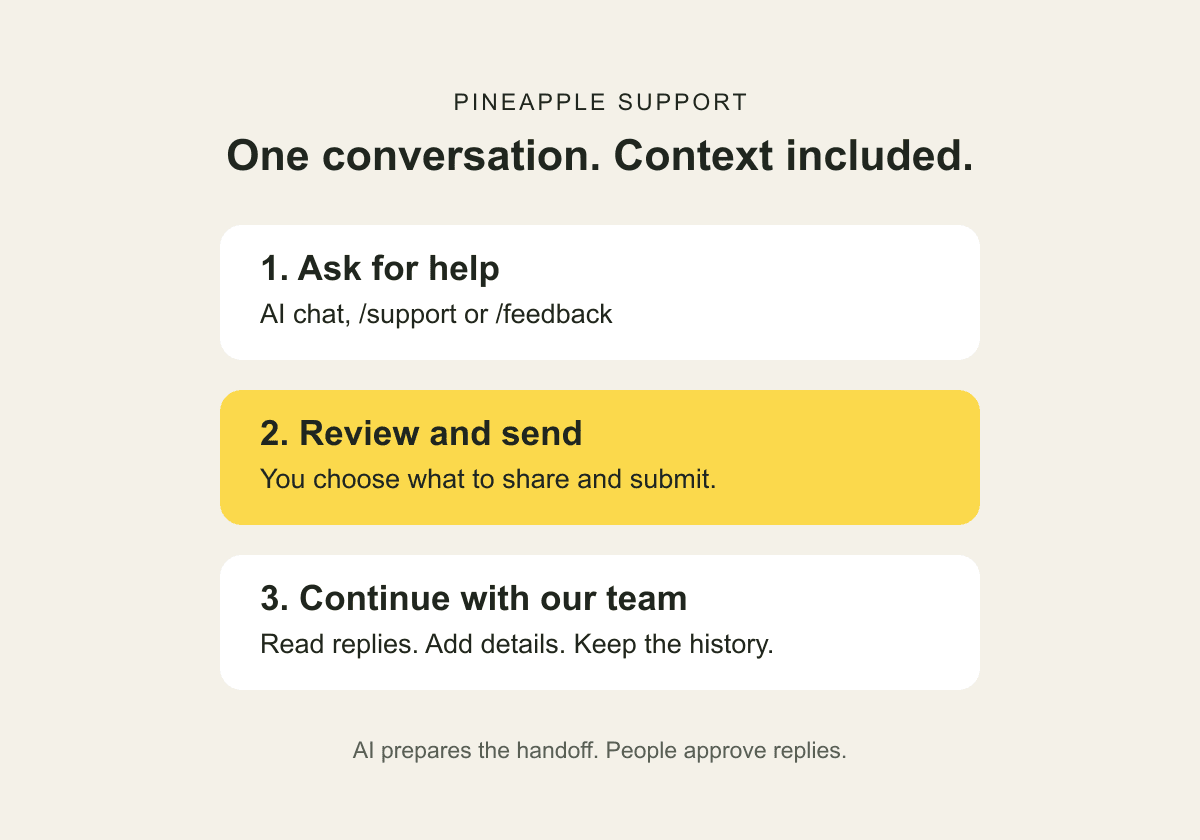
We have built a support flow around that handoff. You can ask for help where you are already working, review the details that will reach our team, and continue in a saved support conversation.
The new flow is live in Pineapple. Here is how it works, why we built it this way, and what we checked before switching over.
Start with the conversation you already have
Pineapple's AI chat can help prepare a human support request when you describe a problem. It gathers relevant details and offers a Contact support card.
For example, you might write:
Publish keeps spinning in Chrome, even after I reload. Can someone help?
That can become a request with a useful summary of the problem and what you have already tried. You can correct the summary before it leaves the chat.
You can also start deliberately: type /support and select Support from the skills menu, or choose /feedback and Feedback to share an idea. The support conversations page provides another way to start a request.
These entry points feed the same support system. Suggestions and problems can have different request types without sending you through unrelated tools.
You decide when the request is sent
Preparing a request and submitting it are separate steps.
The handoff card first lets you review the summary. It explains which account details and chat context will be shared. You then choose Send support request, or Send feedback for a suggestion.
After the request is saved, Pineapple shows a receipt and a View conversation link. That receipt means we have the request. It does not mean a person has already read it or solved the problem.
We wanted those states to be clear. An AI saying “I can help you contact support” should never look like a completed handoff when nothing has actually been sent.
Keep the details and replies together
The saved conversation holds the request, shared context, attachments and replies. Our team can see the information you chose to send and continue from there.
You can add another screenshot or explain what happened after trying a suggestion. When we reply, an email notification links back to the conversation. You reply inside Pineapple, so the history stays together.
The conversation also survives leaving the app. If you refresh while composing a reply, an unsent draft can recover on the same browser and account. Recovery does not submit it automatically; you still choose when to send.
This is the practical improvement we designed for: a clear path from describing a problem to following up with the team, with the earlier context still available.
One inbox, with Codex and Slack helping the team
Behind the scenes, a stored support request is the main record. It remains available when a team member's computer is offline.
Slack alerts our team and provides a private link to the authenticated support screen. A message posted in Slack is not a customer reply. The reply is saved through the support conversation.
Our existing Codex Support task reads that same inbox and can prepare a proposed answer. Customer replies require human approval before sending. The team can also use the support screen directly, without Codex.
We are moving our in-product support from Intercom into this flow because we want the handoff to fit the AI chat customers already use. Keeping one conversation record also gives us a clear place to check whether a request, reply or notification needs attention.
We tested the whole round trip
A support button is only the beginning. Before switching our support workflow, we ran automated checks and manually tested production with clearly labelled test requests.
We checked that the AI prepared a reviewable request, that sending created a saved conversation, and that a later AI turn linked back to the same request. We verified the Slack alert, sent an approved test reply, and confirmed the customer could read it and add a follow-up.
We also refreshed an unsent reply, recovered it, sent it once, and checked that it appeared once after another refresh. Finally, we confirmed that the reply notification reached the test recipient's email Inbox with the correct conversation link.
Those checks establish that the workflow works. They do not establish a faster response time or higher customer satisfaction across real customer cases. Those are outcomes we still need to measure.
What to expect
Human support is asynchronous. A saved request gives you a conversation to return to; it does not promise an instant answer. If an email notification is missing, check the support conversation directly.
This flow is for contacting Pineapple about using the product. If you want visitors to contact your own business, use the separate website chat feature.
Do I have to use AI to contact support?
No. You can open your support conversations and start a request directly.
What should I include?
Explain what you expected, what happened and what you already tried. Include the affected page and a screenshot when useful. Never share passwords, API keys or payment-card details.
Can I reply to the notification email?
Use its conversation link to reply in Pineapple. The notification email inbox is not monitored.
Open your support conversations
For help building your site, visit the Pineapple quick-start guide.
For step-by-step instructions, read Contact support and share feedback.

