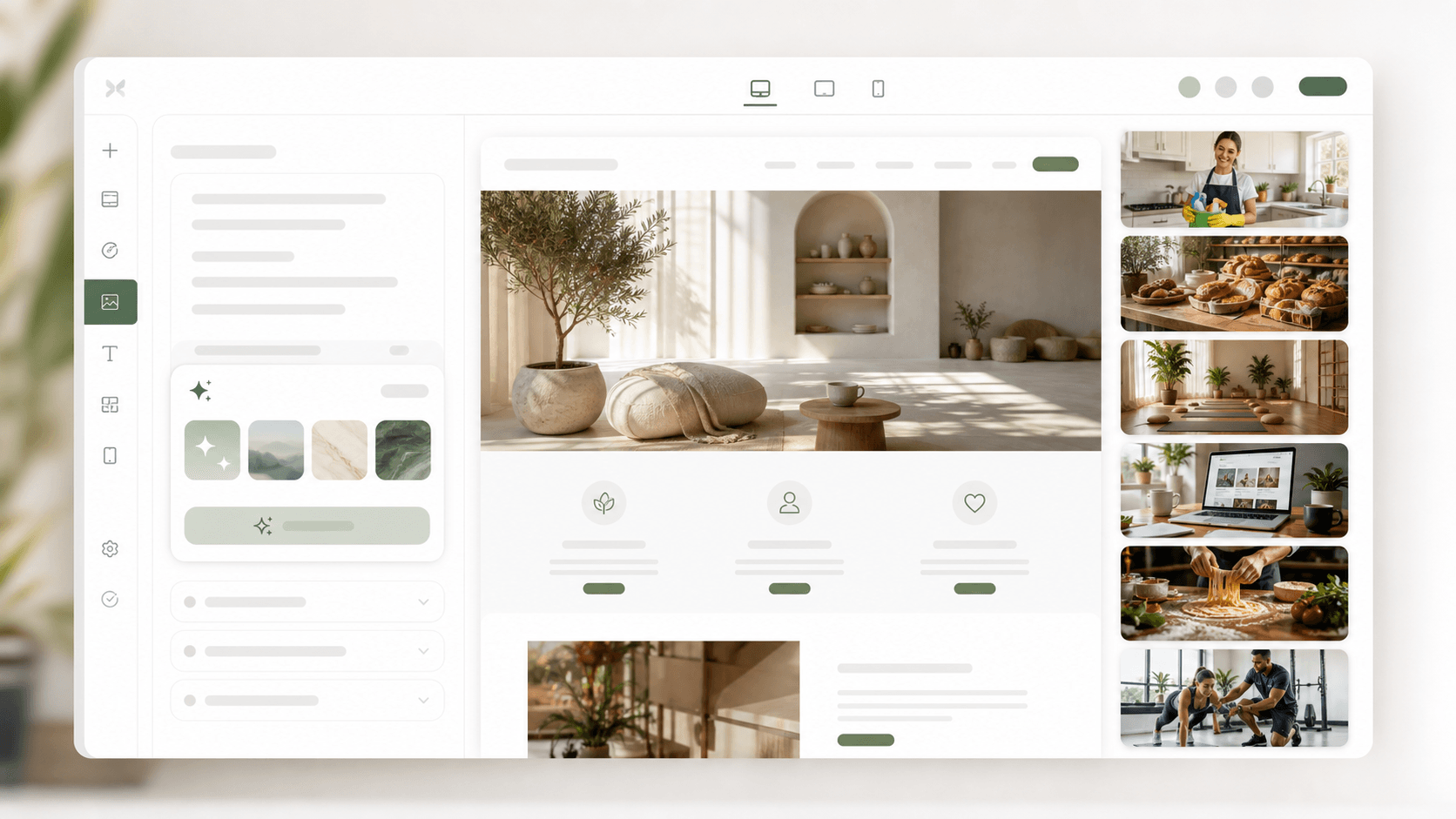
Website drafts often fail for a simple reason: the layout is fine, but the images feel generic.
That matters because people judge a website quickly. A weak stock photo can make an otherwise solid draft feel unfinished, unrelated to the business, or copied from a template.
AI-generated website images help solve that first-draft problem. Instead of searching through stock libraries, downloading files, cropping them, and hoping they fit, you can describe the image you need and create a visual that matches the page section.
In Pineapple, the AI image generator is built for that website workflow: create a visual, place it in the draft, and keep moving.
The short version Use AI-generated images when you need a website draft to feel specific fast. The best prompts describe the business, the page section, the subject, the mood, the lighting, and the style.
Why Website Images Need Different Prompts
A normal AI image prompt can create a nice picture. A website image prompt needs to create a useful website asset.
That means the composition matters as much as the subject. A hero image may need open space for text. A service card image needs a clear subject at small size. A blog header should explain the topic without looking like a random stock photo.
Good website images usually need:
a clear business context
a specific page section
a subject that supports the message
enough negative space for layout
realistic lighting and materials
no text inside the image
a style that matches the rest of the site
This is where AI image generation works best inside a website builder. You are not generating art in isolation. You are generating a visual for a real section of a page.
What Changed In Pineapple
Pineapple image generation now creates sharper generated visuals and follows detailed prompts better.
That means you can create stronger images for:
hero sections
service cards
product sections
blog headers
landing page backgrounds
small business website drafts
The workflow stays simple. Open a page, choose an image section, describe the visual you want, and place the generated image into the draft. If you are starting from scratch, you can also generate a website draft with AI.
A Better Prompt Formula
Good prompts are specific, but they do not need to be complicated.
Use this structure:
Image type + business type + page purpose + subject + composition + mood + lighting + style + no text
For example:
Hero image for a local florist website, florist arranging seasonal flowers,
space on the left for headline text, bright shop interior, warm and welcoming
mood, natural daylight, realistic website photography, no text.
The important part is saying where the image will be used. A hero image, service card image, and blog header need different crops and different visual weight.
Bad Prompt vs Better Prompt
Bad prompt:
Cleaning company image.
Better prompt:
A bright, realistic hero image for a modern local cleaning company website,
friendly team member holding eco cleaning supplies, clean kitchen, space on the
right for website headline, natural daylight, professional website photography,
no text.
The better prompt works because it gives the model a job. It says the business, the section, the subject, the layout need, the lighting, and the style.
Six AI Image Prompts For Website Drafts
Use these as starting points. Then adjust the business type, mood, and section based on the page you are building.
1. Local Service Hero Image

Use this for a homepage hero or above-the-fold service page section.
Why it works: it shows the person, the service, and the setting clearly. It also feels more specific than a generic clean room photo.
Prompt
A bright, realistic hero image for a modern local cleaning company website,
friendly team member holding eco cleaning supplies, clean kitchen, natural
daylight, professional website photography, no text.
2. Bakery Product Section
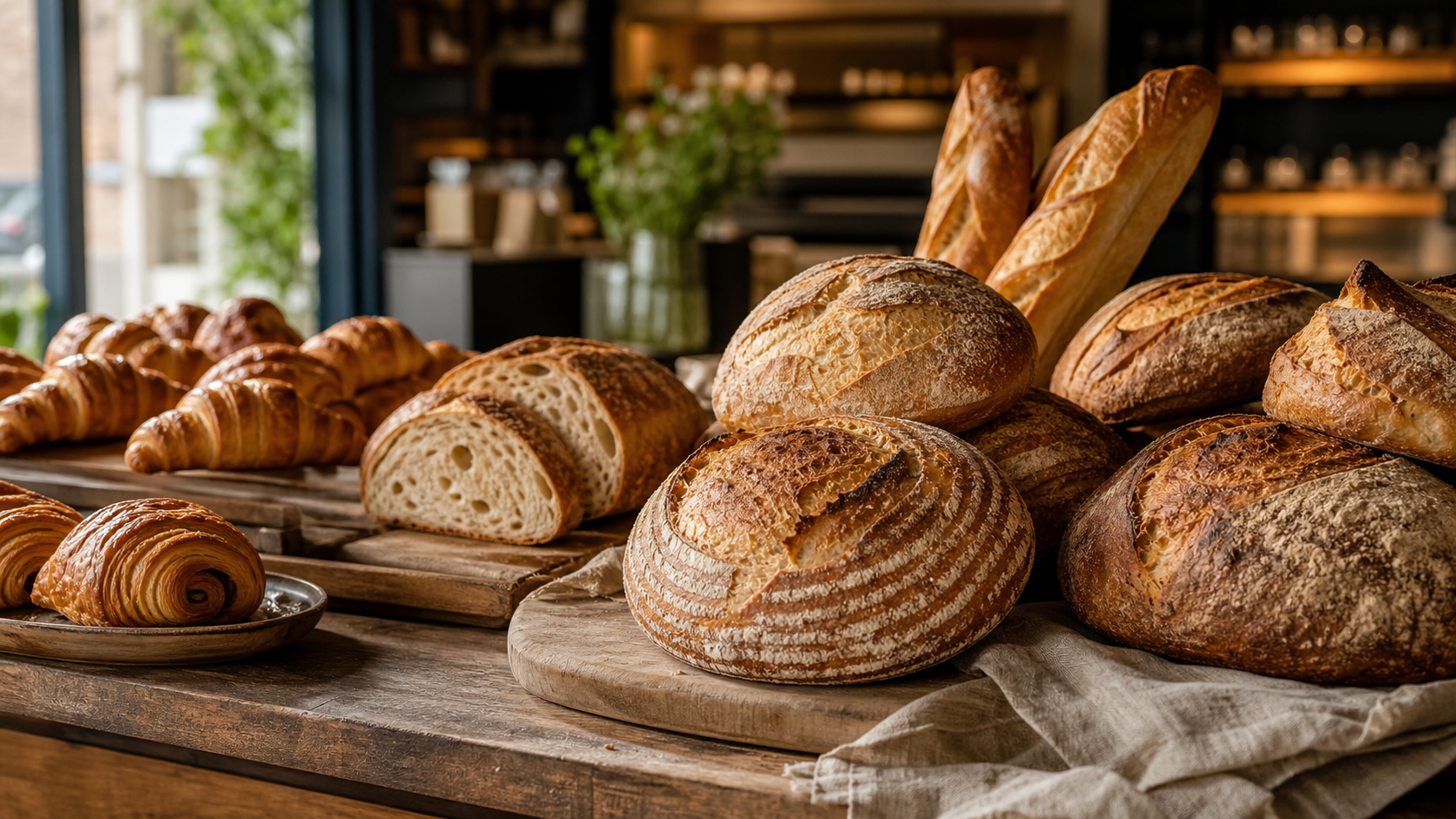
Use this for a product section, menu preview, or local bakery landing page.
Why it works: it gives the page warmth and texture without becoming too busy for a website layout.
Prompt
A realistic website section image for a boutique bakery selling handmade
sourdough and pastries, warm morning light, wooden counter, premium but
approachable, no text.
3. Wellness Brand Image

Use this for a wellness studio, retreat, yoga studio, therapist, or spa website.
Why it works: the image supports the brand feeling instead of only showing a literal service.
Prompt
A calm premium wellness studio website image, soft natural light, clean
interior, plants, warm neutral palette, realistic photography, no text.
4. Small Business Blog Header

Use this for blog posts, guides, or resource pages about small business websites.
Why it works: it shows the topic in context and can sit above long-form content without feeling like decoration only.
Prompt
A polished blog header image about small business websites, laptop with website
mockup, notebook, coffee, natural desk setup, realistic photography, no text.
5. Restaurant Hero Image
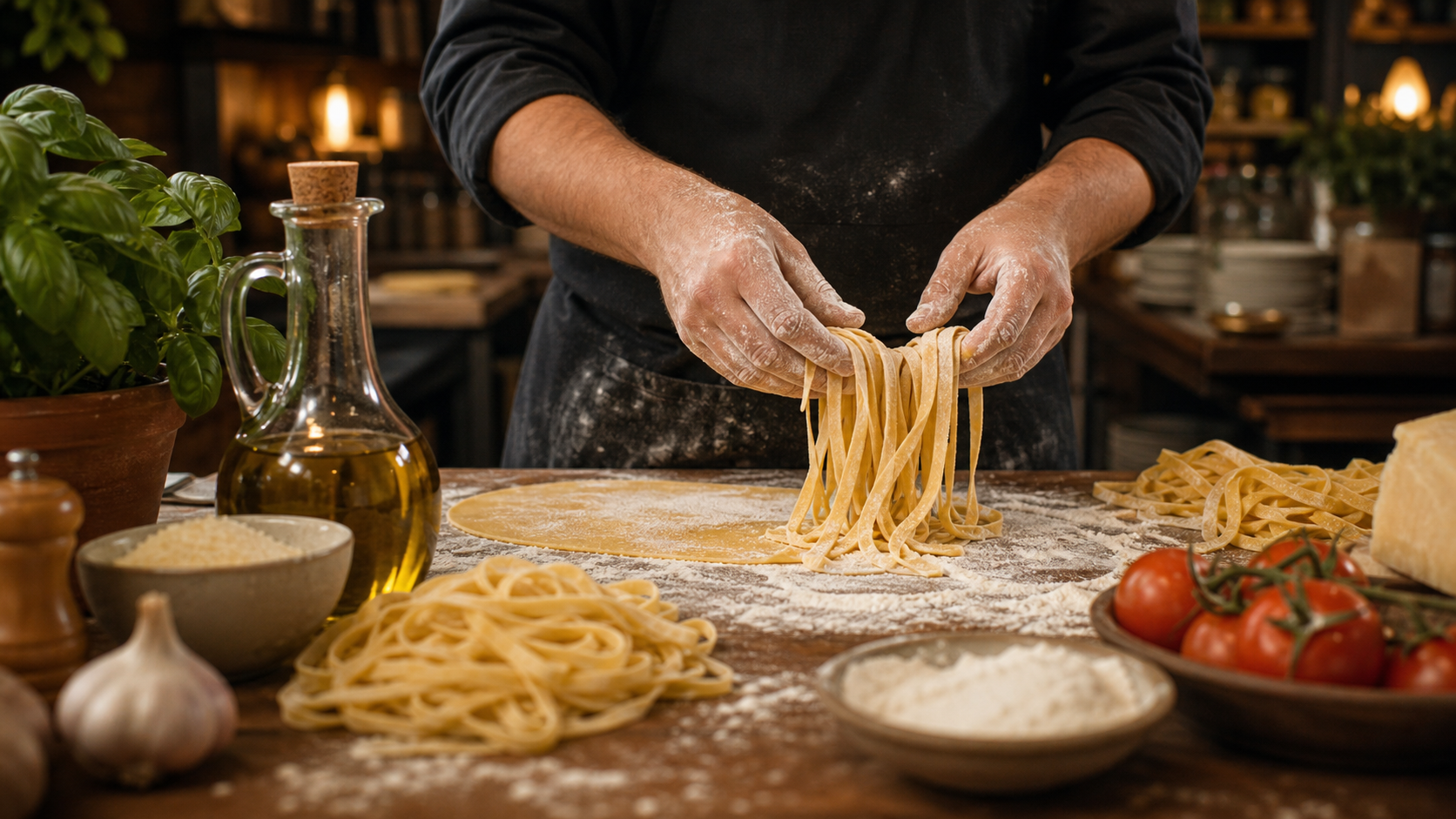
Use this for a restaurant homepage, menu page, or reservation landing page.
Why it works: it shows action and craft, which usually feels more believable than a flat plate photo.
Prompt
A realistic hero image for a neighborhood Italian restaurant website, fresh
pasta being prepared by hand, warm kitchen lighting, authentic ingredients,
premium but friendly, professional food photography, no text.
6. Fitness Coach Landing Page Image
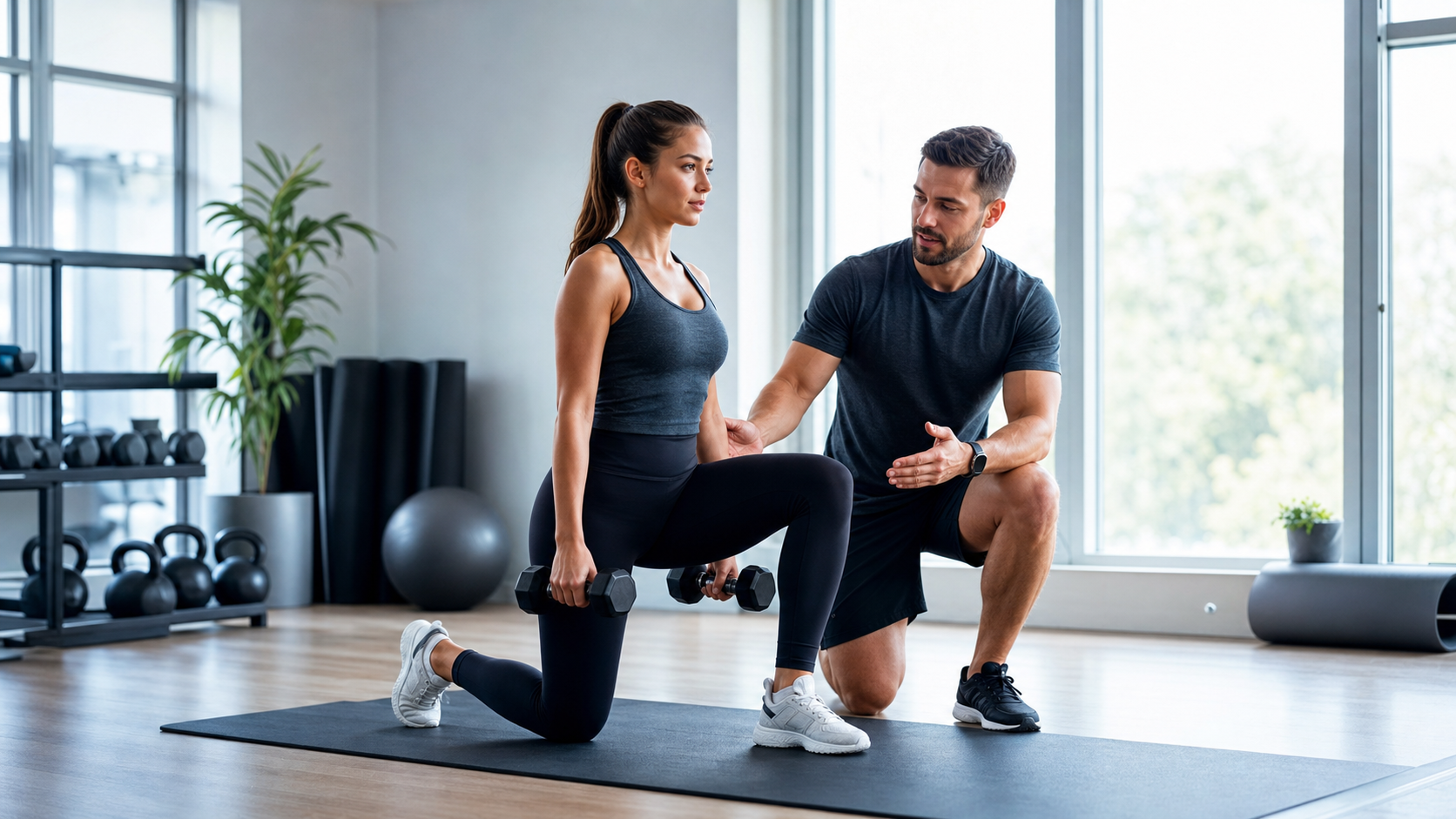
Use this for a coach, trainer, class, or personal fitness landing page.
Why it works: it shows coaching and trust, not just exercise equipment.
Prompt
A realistic landing page image for an independent fitness coach, bright training
studio, coach helping a client with good form, energetic but professional,
natural light, modern website photography, no text.
How To Make AI Images Better For SEO
AI images can help the page look better, but they still need normal image SEO basics.
For the full Pineapple checklist, see our SEO image optimisation guide. Google also has a useful reference on image SEO best practices.
Use descriptive filenames when possible. A file called cleaning-company-website-hero.png is more useful than image-01.png.
Write alt text that explains the image in plain language. Do not stuff keywords. Good alt text describes what is visible and why it is relevant.
Place images near related text. Search engines use the surrounding page context to understand an image, so the image should sit close to the section it supports.
Use compressed images from a CDN. Large images slow pages down, and slow pages make the whole experience worse.
Avoid generating text inside images. Text in images is harder to reuse, harder to translate, and more likely to look broken.
When To Use AI Images, Stock Photos, Or Real Photography
Use AI-generated images when you need a strong first draft fast.
They work well for exploring a website direction, replacing weak placeholders, making service pages feel more specific, creating blog or landing page visuals, and testing a visual style before buying custom photography.
Use stock photos when you need something safe and generic quickly, and the image does not need to represent the exact business.
Use real photography when the exact person, product, venue, proof, or trust signal matters. A restaurant interior, a real team photo, or a physical product should usually become real brand photography before launch.
The best workflow is simple: generate useful first-draft visuals, then replace the most important images with real brand assets when you have them.
FAQ
Can I use AI-generated images on a business website?
Yes, but use judgment. AI images are useful for drafts, concepts, blog visuals, and generic service imagery. For exact products, people, venues, or legal proof, use real photography.
What makes a good AI image prompt for a website?
A good website image prompt explains the business, where the image will appear, what should be visible, the mood, the lighting, the style, and whether the image needs space for text.
Should I replace stock photos with AI images?
Sometimes. AI images are better when stock photos feel too generic or do not match the section. Stock photos can still be useful when you need a quick, realistic placeholder.
Should every website image be AI-generated?
No. Use AI where it helps the draft move faster. Use real brand assets where trust, accuracy, and proof matter most.
Can AI images help a website rank on Google?
They can help indirectly if they make the page more useful, specific, and easy to understand. The image still needs good surrounding content, descriptive alt text, and fast loading.
Try It In Pineapple
Open a page in Pineapple, choose an image section, and describe the visual you want.
Start with the business type, page section, subject, and mood. Pineapple handles the generation inside the editor flow, so you can make the page feel more real without leaving the builder.