

Connect Pineapple Website Builder to Claude
Describe your business in Claude, then open Pineapple with your website brief already filled in. You can also review an existing website and request supported changes with the permissions you choose.

Illustration of the workflow, not a product screenshot.
Before you start
You need a Pineapple account and access to connectors in Claude. An existing Pineapple website is needed for reviews and edits, but not to prepare a new website brief. Generation uses your Pineapple plan and available AI allowance.
Do not paste passwords, API keys or access tokens into chat. Sign in through Pineapple's authorization page.
Connect your account
In Claude, open Customize → Connectors. If Pineapple Website Builder is already connected, reuse that connection.
If the listing is not available, select Add → Add custom connector, name it Pineapple Website Builder, and enter
https://api4.pineapplebuilder.com/mcp/plugin.Let Claude check the server. Use OAuth authentication and Register automatically for the OAuth client. Leave fixed request headers empty; you do not need to copy an API key, client secret or access token.
Finish adding the connector and connect it. Sign in to the Pineapple account you want Claude to use. Check the account shown before granting access.
Choose No access, Read, or Write for each available area. Return to Claude, enable Pineapple for your conversation, and ask it to list the websites you can access. Check that the intended website appears before requesting edits.
On managed Claude accounts, your organization may need to add or allow the connector first. See Claude's custom connector instructions for current account controls.
Choose access for your task
Start with the least access you need. Basic access lets Claude identify available workspaces and websites; it does not unlock every area's content. Your existing Pineapple account permissions still apply.
Prepare a website: enable Website briefs Write.
Review an existing website: choose Read for the relevant areas. Analytics is read-only, and it must already be configured to return measurements.
Request edits: enable Write only for the areas you want to change. Where Read is available, Write includes it.
Keep changes unpublished: leave Publishing and Domains at Read or No access. Some shared design, business or testimonial changes can affect live content; review the proposed action carefully even if you are not publishing a page.
Prepare your business website
Try this fictional example, replacing the details with your own:
Prepare a Pineapple website brief for Harbor Advisory. We help independent consultants clarify their offers and website messaging. Our services are positioning reviews, website messaging reviews and practical action planning. The audience is established US consultants and small service businesses. Use clear, approachable English and a clean style. The main action is Contact us. Ask for missing facts; don't invent prices, testimonials, contact details or team members.
Claude saves the brief and returns a private Pineapple link. Open it while signed in to the same Pineapple account. Choose a recommended template or browse the catalogue, adjust its style, then review the prefilled details.
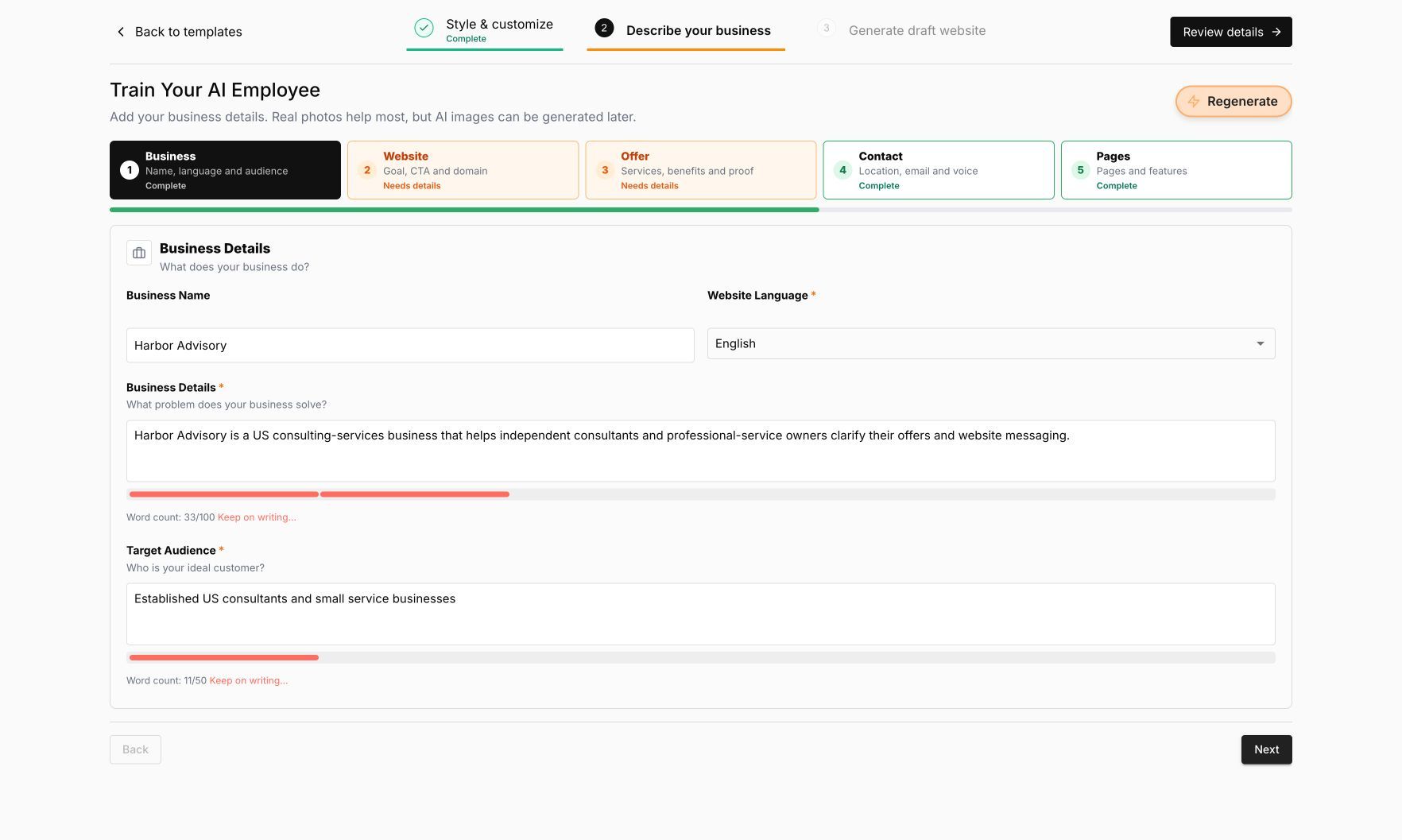
Real prefilled form using a fictional consulting business. Review missing details before continuing.Open the full-size form screenshot.
Saving the brief does not generate or publish a website. You start generation in Pineapple. Review and personalise generated text, images, contact details and example content before publishing. The brief link expires after 24 hours; keep it private. Link expiry is separate from the lifetime of an imported draft or generated website.
Review and change an existing website
Start by naming the website and asking for a read-only review:
Review my Pineapple website's page SEO and available analytics. Suggest one useful improvement without changing anything.
For a change, name the page and give the exact outcome or text. Supported areas include draft pages and supported blocks, SEO, design, business details, service or product listings, testimonials and translations, subject to access and plan limits.
Claude may ask permission to call a tool. For reviewed changes, Pineapple also provides a link showing the target and proposed action. Review it, approve only what you requested, then return to Claude and ask it to continue the same action. Approval alone does not perform the change. Ask Claude to read the result back before treating it as saved.
If the proposed change is wrong, choose Cancel in Pineapple. Do not ask Claude to bypass that cancellation with a replacement request. If a completed request is retried, its receipt can describe the original result rather than the page's latest content; ask for a fresh read before another edit.
Publishing and connecting an already-owned domain are separate actions requiring their own permissions and explicit review. The connector does not buy domains, take payments, upgrade your plan, delete records or unpublish pages.
Files, privacy and disconnecting
You can work with supported images and files already stored in Pineapple. Direct uploads from Claude chat attachments are not supported by this connector flow: our Claude web test did not provide the file ID and download link needed to transfer the attachment. If an attachment cannot be transferred, upload it through Pineapple and then select the existing asset. An upload is not the same as inserting an image or publishing a page; uploaded asset URLs can be shareable.
To add a file using the existing Pineapple flow:
Open the intended website dashboard in Pineapple and choose Assets.
In Media library, select Upload and choose your file. The workspace's current file-type and size limits apply.
Return to Images and confirm the file appears. If it is rejected, use a supported file within your allowance; do not assume an upgrade or upload happened.
Return to Claude and ask it to find that existing asset in the same workspace. Selecting or uploading an asset does not publish it on a page.
Business details you ask Claude to save are sent to Pineapple. Requested website information returns to Claude, within the granted access. Follow the Pineapple privacy policy; do not include secrets or unnecessary sensitive information in a website brief.
Disconnect or remove Pineapple in Claude's connector settings when you no longer need it. This does not delete saved Pineapple content. Contact Pineapple support for account or authorization help.
If something does not work
Wrong or missing website: check which Pineapple account you connected and whether it can access the workspace.
Permission needed: review the relevant area in the connection settings; do not substitute a broad token or paste credentials into chat.
Approval expired: ask Claude to check the action's state before requesting another review. Do not repeat a completed change blindly.
Brief link expired: ask for a fresh brief link. Do not assume the imported form or generated website was deleted.
Analytics unavailable: configure analytics in Pineapple or ask for a content-only review. Missing data is not measured zero traffic.
For help, use Pineapple support.

